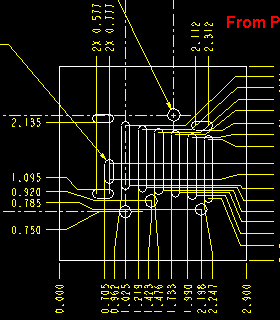
The Problem: Exporting yellow text and
dimensions in DXF.
Anyone who has to deal with outside machine shops or vendors, has had to export a drawing in a format
other CAD systems can read. A common export format is DXF, which stands for
Drawing Exchange Format. If you have done this from Pro/E, you know many shops
complain about dimensions, text, and other draft entities being yellow. This creates problems when
the file is imported in another CAD or CAM system that has a white or light background. There is not
enough contrast to see the yellow as shown in the figure below.
Printing the drawing does not usually solve the problem because the printed output can have
yellow or very light grayscale on white paper. Many CAD programs (or operators) do not have the
ability to change the background color to black and make the yellow readable -- then if they do, the
printing problem may remain. If all the entities on a drawing are white, the CAD system will usually
show them as black on the white background and on the printed page.
The Solution: Make Pro/E assign the desired color(s) as it creates the DXF.
Changing colors of the entities in the drawing in Pro/E before creating the DXF file will not
solve the problem, it actually creates some new problems that will be discussed later. Release 2000i
(and above) provides the ability to map alternate colors to DXF files using a new configuration file
called "dxf_export.pro". This file must exist in the current working directory to be read.
A template dxf_export.pro file is provided in the "loadpoint"/text/intf_configs directory.
The line of interest for changing yellow dimensions and text is LETTER_COLOR. By changing
this line to read "map_color LETTER_COLOR 5" (case is important) the yellow draft entities will
import into AutoCAD (and other programs) as blue. (The number 5 corresponds to the AutoCAD color
pallet.) A few common AutoCAD colors are:
- 3 = RED
- 5 = BLUE
- 7 = WHITE
For best results, try 7. This will make all draft entities show up on any background color,
just like geometry.
 |
| Figure 2 |
|
The Bugs: - as usual - in the solution.
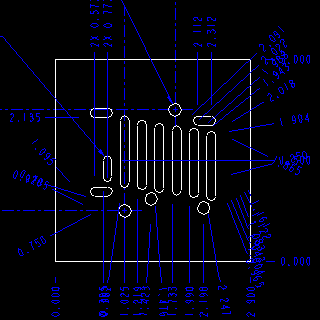
There are two bugs associated with DXF output -- and they are not trivial. In order for the
dxf_export.pro file to work with dimensions, the "copy_dxf_dimmed_pict" line in the
config.pro file must be set to "no". Once this is set to "no" the colors will change but
the dimension formatting will be lost. This can render the drawing unreadable if there are many
created or ordinate dimensions having leader jogs.
Figure 2 is a great example of a loss of formatting.
The other bug is if the color of the entities have ever been changed, they will not be converted
as specified in the dxf_export.pro file. This is particularly troublesome because that
is usually the first thing tried when struggling to convert the yellow entities to some other color
... wouldn't you know!
 |
| Figure 3 |
|
The Workaround:
If you need to change the colors and preserve dimension formatting, then the drawing must be converted
the hard way.
- Export to a DXF file as usual.
- Create a new drawing that is empty; has no default model.
- Import the DXF file you just created using APPEND.
- Use: DETAIL > MODIFY > MODIFY TEXT > MODIFY TEXT STYLE to change the color of the text.
(The Modify Text Style menu is shown as Figure 3.) Also, use the "PICK MANY" option to
help selection go faster.
- Use: DETAIL > MODIFY > MODIFY LINE STYLE > PICK MANY to change the color of the lines.
- Export the new drawing as a DXF and this newest DXF will have the colors you have chosen.
This works best if all the colors are changed to White. Otherwise, it is difficult to get the
dimension text to match the color of the leaders.
 |
| Figure 4 |
|
Figure 4 is the final, desired output. This was created as white lines and text, but is
interpreted as black with the white background.
Good luck with all your DXF conversions.
See you next month.